Description
Settings and WooCommerce My Account
Open Order List Table in the WordPress admin menu to manage the plugin. Each Elementor widget has its own toggle and is enabled by default. Disabled widgets stop rendering, including previously saved instances. Re-enable them to restore their saved tables.
Enable the optional My Account order tables integration to replace WooCommerce?s Orders tab, display before or after Dashboard content, or select any combination of the three placements. Customers see only their own orders, including statuses, totals, purchased products, and WooCommerce?s View, Pay and Cancel actions when available. Signed Load More requests preserve customer ownership.
Choose Modern or Compact layout, visible columns, status filters, batch size, mobile cards, expandable products, text, colors and site-date or relative-time formatting. Leave every status unchecked to include all registered statuses. Account appearance settings apply to My Account; Elementor widgets retain their own design controls.
My Account works with WooCommerce alone. Install Elementor only if you want to use the Elementor widgets. Account integration is disabled by default. Exclude private account pages from server/CDN full-page caching.
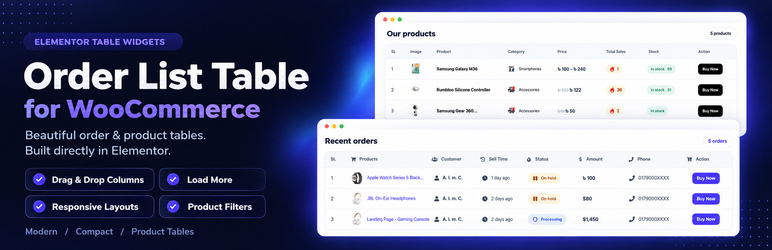
🚀 Beautiful Order & Product Tables — Built Inside Elementor
Build attractive order activity and product catalog tables directly in Elementor. Display your store’s orders and products with flexible columns, responsive layouts and customizable styling.
Choose Order List Table (Modern), Order List Compact Table or Product List Table from the Order List Table widget category.
✨ Features
🧩 Three Dedicated Widgets
Choose Modern Order Table, Compact Order Table or Product List Table to suit your page.
️ Drag-and-Drop Columns
Reorder fields, edit column headings and show or hide individual columns.
📱 Responsive Layouts
Display mobile cards, enable optional sticky headers and adjust row spacing.
🛍️ Detailed Product Catalogs
Show product images, titles, prices, linked category thumbnails, sales counts and stock, with optional SKU and rating columns.
🔎 Flexible Product Filters
Select multiple categories, search for specific products or display Featured, Best Selling, Recent and Best Reviewed collections.
➕ Load More on Every Table
Append the next batch without replacing existing rows. Customize the button’s text, visibility and appearance.
🛒 Smart Buy Now Links
Available simple products open checkout. Variable products open their product page so customers can select variations.
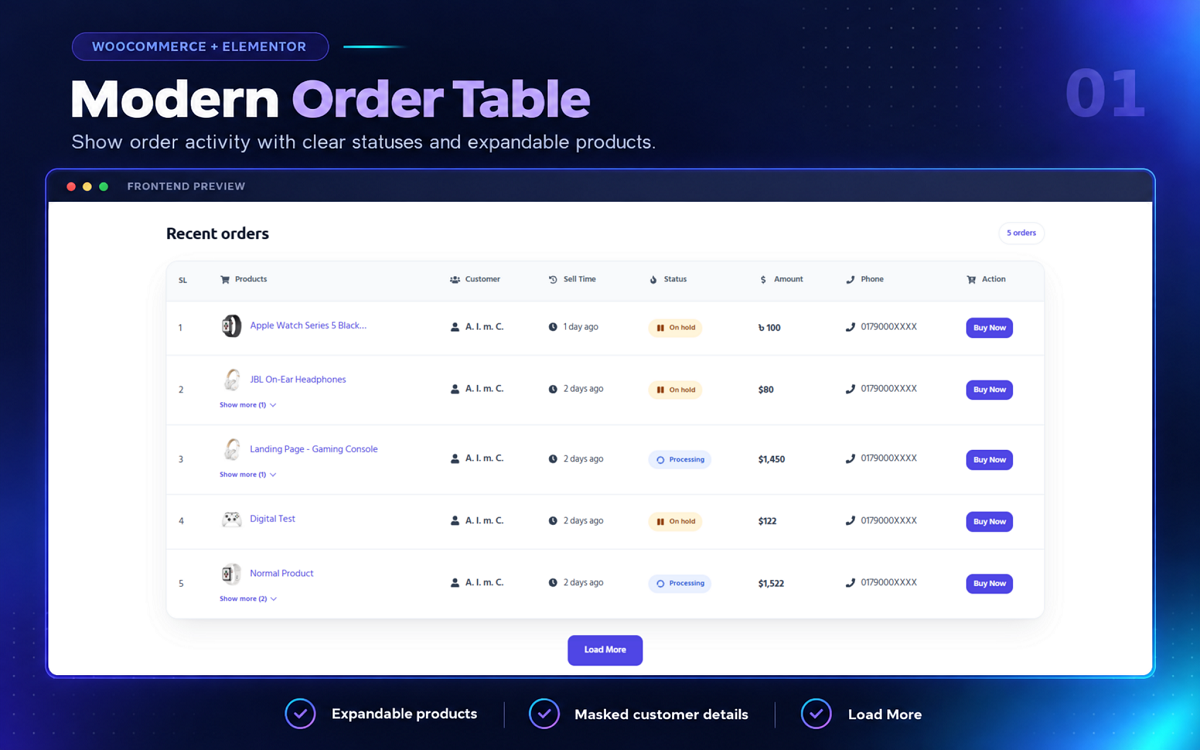
📂 Expandable Order Details
Show the first product and let visitors reveal additional products with their matching actions.
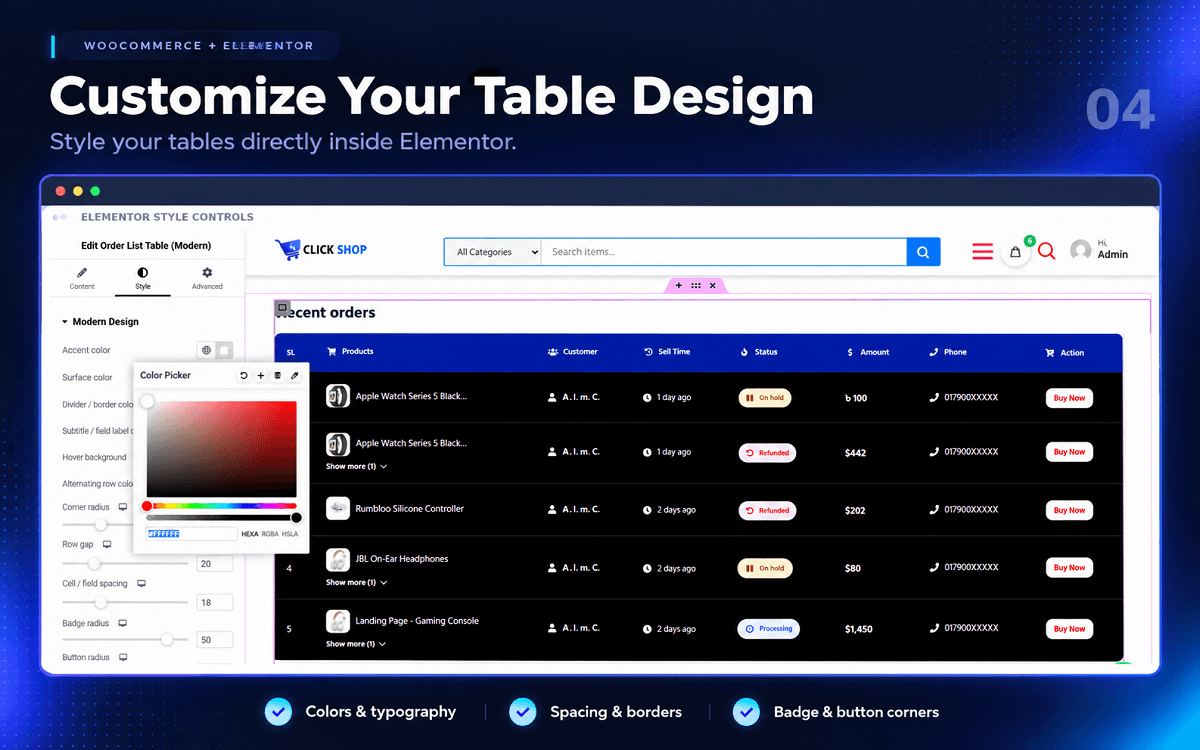
🎨 Elementor Design Controls
Customize typography, title and price colors, borders, spacing, images and badge/button corners.
✨ Animated Details
Add optional entrance and hover effects, a rotating processing icon and an animated sales fire icon. Reduced-motion preferences are respected.
🏷️ Customizable Stock-Out Badges
Edit badge text, colors and responsive corner radius. By default, the badge follows the Buy Now button radius.
🔒 Privacy & Compatibility
Includes masked public customer details, customer/manager order views, HPOS support and native-lazy thumbnails compatible with Click Shop.
⚡ Simple Setup
1. Choose Your Widget
Add an order or product table to your page in Elementor.
2. Configure Your Content
Set order or product filters, arrange the columns and choose the fields to display.
3. Style Your Table
Customize the appearance directly in Elementor. Modern Design appears first in the Style tab; Load More Button appears last.
4. Control Each Batch
Set the items per page. For example, 10 displays the first 10 matching rows. Load More appears only when additional results exist and hides after the final batch.
🎨 Fine-Tune Your Product Display
- Product Price Color: Applies to ordinary prices, variable price ranges and current sale prices.
- Del Color: Controls crossed-out old prices.
- Product & Category Titles: Include separate hover/focus color controls.
- Product Title Length: Adjust the word limit to keep your table layout tidy.
🔐 Order Visibility & Privacy
🌍 Public Order Tables
Customer names and phone numbers are masked. Enabled product, status, date and order-total fields remain public in public activity tables.
👤 Customer-Only Views
Customers must sign in to access their order view.
🛡️ Manager-Only Views
Access requires WooCommerce management permission.
⚙️ Cache Configuration
Exclude pages containing private order views from server/CDN full-page caching.
🔗 Product Visibility
Only published, publicly viewable products are linked. Catalog tables respect WooCommerce catalog and stock visibility.
💙 Made by WP Methods
🌐 Developed by WP Methods.
☕ Support continued development: Buy Me a Coffee.
Screenshots


Installation
- Install and activate WooCommerce. Install Elementor if you want to use the widgets.
- Upload the plugin ZIP through Plugins > Add New, or upload its folder to wp-content/plugins.
- Activate Order List Table Elementor Widget for WooCommerce.
- Edit a page in Elementor and open the Order List Table widget category.
- Add a widget, configure its content and design, then publish or update the page.
FAQ
-
🧩 Which plugins are required?
-
WooCommerce is required. Elementor is required only for the Elementor widgets; My Account order tables work without Elementor.
-
️ Can I reorder or hide columns?
-
Yes. Use Drag & Drop Field Order in the order tables or Drag & Drop Columns in the product table. Existing Hide/Show controls also apply.
-
🔎 Can I display selected products or categories?
-
Yes. Search and select multiple categories or specific products in Product Settings. Collection, product-type and stock filters can be combined with these selections.
-
🛒 How do Buy Now links work?
-
- Available simple products: Add one unit and open checkout.
- Variable products: Open the product page for variation selection.
- Grouped/external products: Use View product links.
Existing cart contents are preserved.
-
🏷️ How do I change the stock-out badge radius?
-
Open Style > Stock Out Badge > Border radius. Leave it empty to follow the Buy Now radius, or set separate desktop, tablet and mobile values.
-
✨ Can animations be disabled?
-
Yes. Disable the individual effects in Elementor. Visitor reduced-motion preferences are also respected.
-
🔄 Will existing order tables keep working?
-
Yes. The original widget identifier and supported saved settings are retained.
Reviews


Contributors & Developers
“Order List Table Elementor Widget for WooCommerce” is open source software. The following people have contributed to this plugin.
Contributors

Translate “Order List Table Elementor Widget for WooCommerce” into your language.
Interested in development?
Browse the code, check out the SVN repository, or subscribe to the development log by RSS.
Changelog
3.2.0 (2026-10-28)
- Added a dedicated Settings API screen with individual Elementor widget toggles, enabled by default.
- Added optional customer-owned My Account tables in the Orders tab and before/after the Dashboard.
- Added account layout, columns, status filters, colors, mobile cards, date formatting and signed Load More.
- Shared order queries and renderers across integrations; separated Elementor controls, templates and assets.
- Centralized timezone-aware date helpers, guarded dependency loading and revoked disabled table cursors.
3.1.0 (2026-10-25)
- Added Modern and Compact order layouts plus a Product List Table in one Elementor category.
- Added draggable columns, responsive mobile layouts and extensive Elementor design controls.
- Added product/category selection, featured and ranked collections, and simple/variable product purchase links.
- Added customizable Load More with continuous serial numbers across all tables.
- Added expandable product lists, stock-out badges and optional processing/sales animations.
- Improved customer privacy, HPOS compatibility and product/category thumbnail lazyload compatibility.
3.0.1 (2026-01-13)
- Fixed refunded order status display.
2.0.0 (2025-01-02)
- Added Buy Now actions and mobile table controls.
- Improved order list compatibility across websites.
0.1
- Initial release.