

Description
Multiple Range Slider for Gravity Form adds a powerful and flexible range slider field type to Gravity Forms. It’s perfect for letting users select a price range, budget, age, quantity, date range, or any other numeric value — all with a smooth, interactive slider instead of a plain text input.
The plugin adds new slider field types directly inside the Gravity Forms editor, so setup is quick and familiar. You can configure minimum and maximum values, step increments, tooltip positions, prefix labels, and custom slider styles — all without writing a single line of code.
Common use cases include price range filters, budget selectors, age or year range pickers, satisfaction rating scales, and quantity selectors.
Free Features
- Easy to Use — Slider fields are added directly inside the Gravity Forms field editor, just like any other field.
- Single Edge Slider — Let users select a single numeric value with a draggable handle.
- Double Edge Slider — Let users select a range between two values (e.g. min price to max price).
- Custom Label Slider — Replace numeric values with custom labels (e.g. Sunday, Monday, Tuesday).
- Step Control — Set the increment step size for the slider (e.g. steps of 10, 50, 100).
- Min & Max Values — Define the minimum and maximum allowed values for single and double edge sliders.
- Prefix on Values — Add a prefix to displayed values (e.g. $ or €).
- Multiple Slider Styles — Choose from several visual slider styles to match your site design.
- Multiple Tooltip Positions — Control where the value tooltip appears relative to the slider handle.
- Cross-Browser Compatible — Works correctly in all major browsers including Chrome, Firefox, Safari, and Edge.
- WPML Compatible — Fully compatible with WPML for multilingual WordPress sites.
Pro Features
Upgrade to the Pro version for additional customization options:
- Prefix Position — Choose whether the prefix appears on the left or right side of the value.
- Enable / Disable Slider Range — Programmatically enable or disable the slider range display.
🌟 Get Pro | 🌟 Documentation | 🌟 Demo | 🌟 Support
Requirements
- WordPress 5.5 or higher
- Gravity Forms plugin (installed and active)
Screenshots

Range slider fields in the Gravity Forms field editor — add single, double, or custom label sliders. 
Field settings panel — configure min, max, step, prefix, style, and tooltip position. 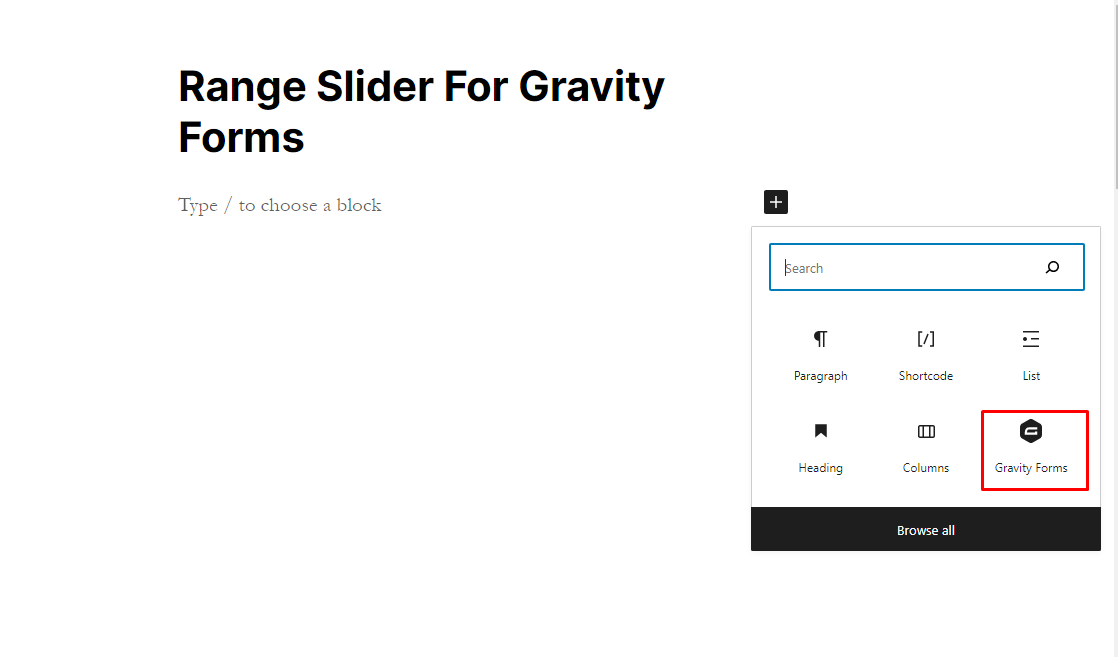
Adding a Gravity Form block in the WordPress block editor (Gutenberg). 
Selecting a form to display using the Gravity Forms block. 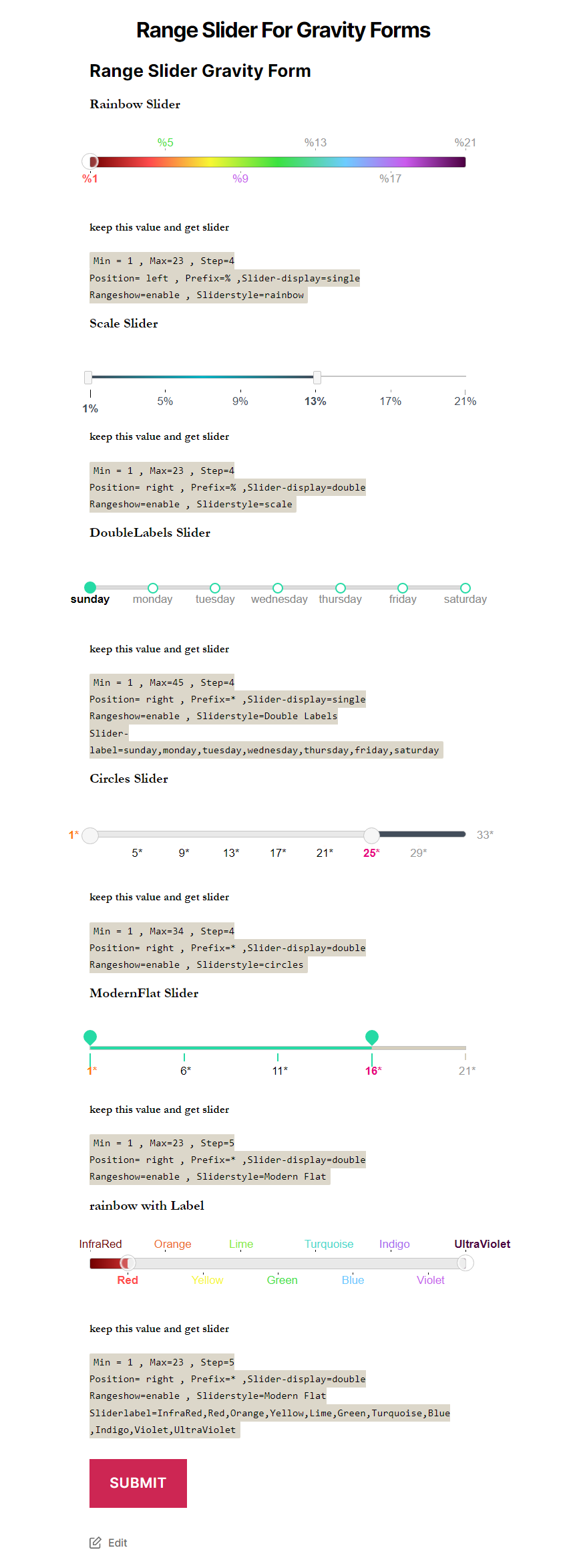
Frontend display — how the range slider looks to visitors on your site.
Installation
Automatic Installation (Recommended)
- Log in to your WordPress dashboard.
- Go to Plugins > Add New.
- Search for Multiple Range Slider for Gravity Form.
- Click Install Now, then click Activate.
Manual Installation
- Download the plugin .zip file from the WordPress Plugin Directory.
- Log in to your WordPress dashboard and go to Plugins > Add New.
- Click Upload Plugin and select the downloaded .zip file.
- Click Install Now, then click Activate.
After Activation
- Go to Forms in your WordPress dashboard and open or create a Gravity Form.
- In the form editor, look for the new range slider field types in the field list on the right.
- Drag a slider field into your form and configure its settings (min, max, step, style, etc.).
- Save your form — the slider will appear on the frontend immediately.
FAQ
-
Do I need Gravity Forms installed?
-
Yes. This plugin adds new field types to Gravity Forms and requires Gravity Forms to be installed and active. Gravity Forms is a premium plugin available at gravityforms.com.
-
What types of sliders are available?
-
The plugin includes three slider types: a single edge slider (one handle, one value), a double edge slider (two handles, for selecting a range between two values), and a custom label slider (replaces numbers with your own text labels like days of the week or months).
-
Can I set custom minimum and maximum values?
-
Yes. You can configure the minimum and maximum values for single and double edge sliders directly in the Gravity Forms field settings panel.
-
Can I use a prefix like $ or € with the slider values?
-
Yes. You can add a prefix character to the displayed slider value. The Pro version also lets you choose whether the prefix appears on the left or right side of the value.
-
Can I use text labels instead of numbers on the slider?
-
Yes. The custom label slider lets you replace numeric values with any text labels you choose, such as days of the week, months, satisfaction levels, or size options.
-
How do I control the step size of the slider?
-
In the field settings panel inside the Gravity Forms editor, you will find a step option. Set it to any number to control how the slider increments (for example, steps of 10 or 100).
-
Is the slider value saved with the form entry?
-
Yes. The selected slider value is saved as part of the Gravity Forms entry, just like any other field. You can view it in the entries list, use it in email notifications, and include it in confirmations.
-
Is the plugin compatible with WPML?
-
Yes, the plugin includes WPML support for multilingual WordPress sites.
-
Where can I get support?
-
Visit our support page for help.
Reviews


Contributors & Developers
“Multiple Range Slider For Gravity Form” is open source software. The following people have contributed to this plugin.
Contributors
Translate “Multiple Range Slider For Gravity Form” into your language.
Interested in development?
Browse the code, check out the SVN repository, or subscribe to the development log by RSS.
Changelog
1.0
- Initial release.